How to monitor multiple Claude Code sessions across machines
Once you run more than two coding agents at a time, the terminal stops telling you what you need to know. This guide sets up one live view of every Claude Code, Codex CLI and Copilot CLI session, on one machine or many.
Why terminal tabs stop working
Each agent runs in its own tab, and the tab title rarely says what it's doing. To find out whether a session finished, hit an error or is sitting on a permission prompt, you have to switch to it and scroll. Across two laptops and a desktop it gets worse: you can't see the other machines at all.
What you want is a single list that answers three questions for every session: what is it working on, does it need me, and what did I last ask it.
How AgentPulse gets the data
Claude Code, Codex CLI and Copilot CLI can each run hooks on events like a submitted prompt, a tool call or the end of a turn. AgentPulse installs hooks that post those events to its server. The hooks run asynchronously, so they never slow the agent down, and the server always answers immediately.
The server stores each event, keeps one record per session and pushes updates to the dashboard over a WebSocket. Nothing reads your terminal or scrapes the agent's output.
Step 1: install on your main machine
On macOS or Linux:
curl -fsSL https://raw.githubusercontent.com/jstuart0/agentpulse/main/scripts/install-local.sh | bashOn Windows (PowerShell):
irm https://raw.githubusercontent.com/jstuart0/agentpulse/main/scripts/install-local.ps1 | iexThis installs AgentPulse with Bun and SQLite, starts it as a service and configures the Claude Code and Codex hooks. Open http://localhost:3000 and start a new agent session. It shows up on the dashboard as soon as you send your first prompt.
Step 2: read the dashboard
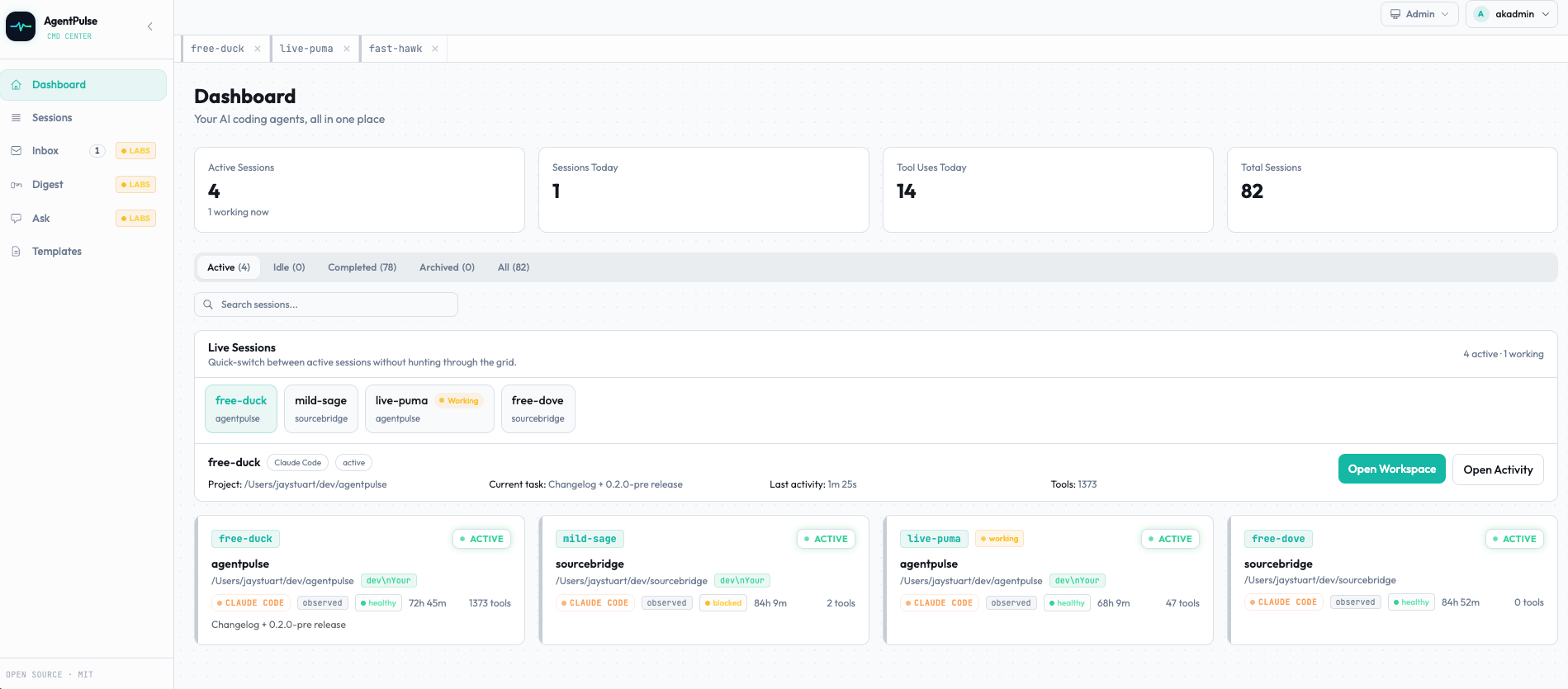
Every session is in exactly one state:
| State | Meaning |
|---|---|
| Working | The agent is running a turn right now. |
| Waiting | The agent finished a turn, or is blocked on a permission prompt, and you haven't looked yet. |
| Error | The session failed and you haven't dismissed it. |
| Idle | Nothing is waiting on you and the agent isn't working. |
Each session also gets a random name like bold-falcon, so you can match a card to its terminal tab. If you use the optional status line, the same name shows in Claude Code itself. Click a card for the full timeline: your prompts as a chat history, with the agent's tool calls inline.
Step 3: add your other machines
To see sessions from more than one computer, run AgentPulse on a server every machine can reach: a home server, a VPS or a Kubernetes cluster. Then install the relay on each machine that runs agents:
curl -sSL https://your-agentpulse-server.example.com/setup-relay.sh | bashThe relay listens on 127.0.0.1, configures the hooks to post to it, queues events on disk and forwards them to the server with your API key. If the server is unreachable for a while, events wait in the queue instead of being lost. The installer asks for the key on the terminal so it never lands in your shell history.
The relay also reports the machine's name. The dashboard shows it on each card and adds a machine filter once more than one machine has reported in.
Step 4: keep private projects out
List directories in ~/.agentpulse/exclude on a machine that uses the relay, and the relay never sends sessions started there. The rules stay on that machine, and the server never learns what is excluded. For a one-off run, set AGENTPULSE_SKIP=1. The README lists which senders apply the rules.
What else you get
- Full-text search across session names, prompts, plans, notes and events.
- Notes, pins and archives for each session.
- An inbox that collects every session waiting for approval, stuck or recently failed.
- Desktop notifications when a session needs you.